
Start 2 Finish Race Day Timing
Admin setup — install & build races
Office admins install this app on every timing and announcer laptop that needs it, then create races and race groups before race day. Timers use the Race Day guide once the machine is ready.
Download & Install
Install on each Windows laptop that will time or announce:
Most timing laptops → 64-bit. Parallels or ARM Windows → ARM. Not sure? Use 64-bit. All releases (Portable zips if needed).
- Run the Setup you downloaded. Signed builds should avoid SmartScreen warnings.
- On first launch, accept both prompts — these are required for race day:
- Pin to taskbar? — tap Pin…
- Speed up race day? — tap Exclude… (Defender exclusions for Active/Backup)
- Approve UAC if Notepad++ installs for RunScore’s external editor.
- Also install RunScore and MyLaps Timing & Scoring on Main Timing laptops.
- Sign in to OneDrive from the app (Sign In to OneDrive) with the company Microsoft account used for race files.
Open Admin
- Launch S2F Race Day.
- Tap Admin in the black header (top right, orange link).
- Enter the Admin PIN when prompted.
Admin PIN (company fixed): 7690
Required for Admin tabs and for Force Take Over… on race day. Signing in to OneDrive does not need the PIN.
After the PIN you get three areas: Setup New Event, Edit Current Event, and Settings.
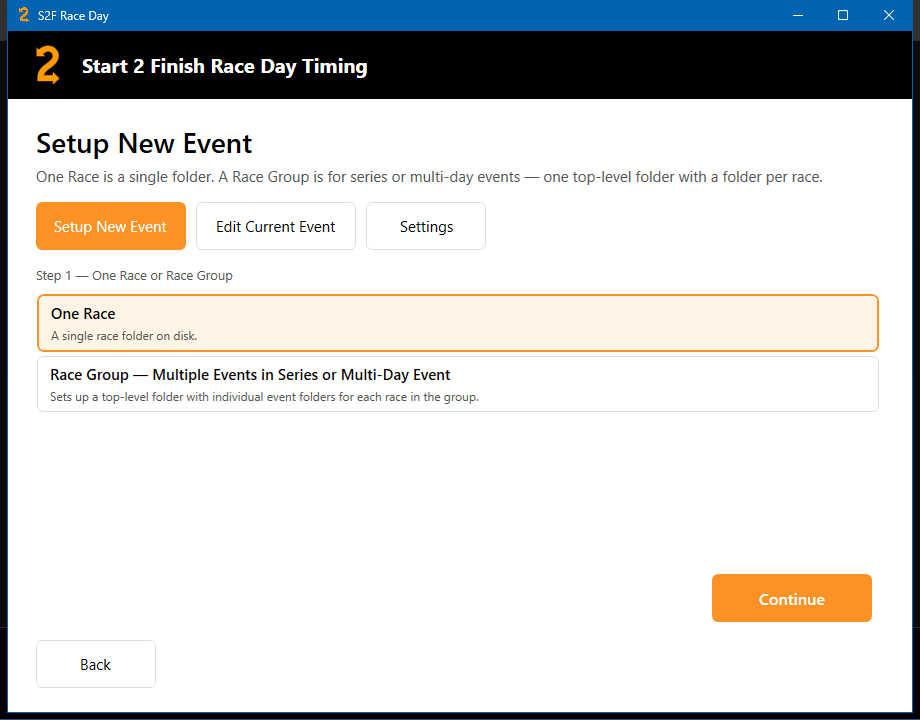
Setup New Event
Creates a race folder from a Template or a past race. Use this before race week.
- Step 1 — One Race or Race Group Choose One Race for a single folder, or Race Group — Multiple Events in Series or Multi-Day Event for a top-level folder with one folder per race. Tap Continue.
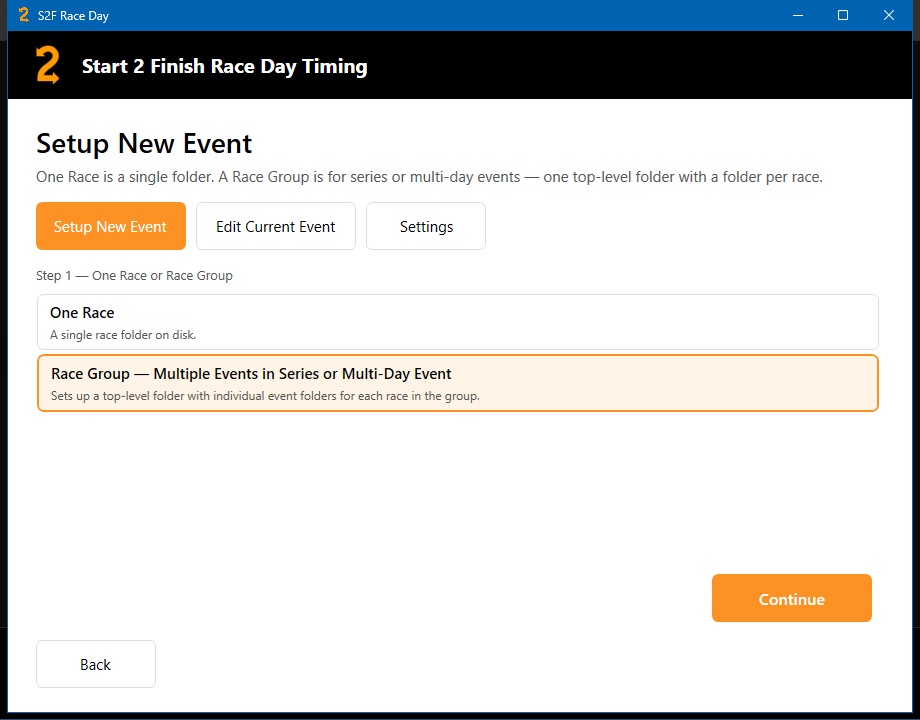
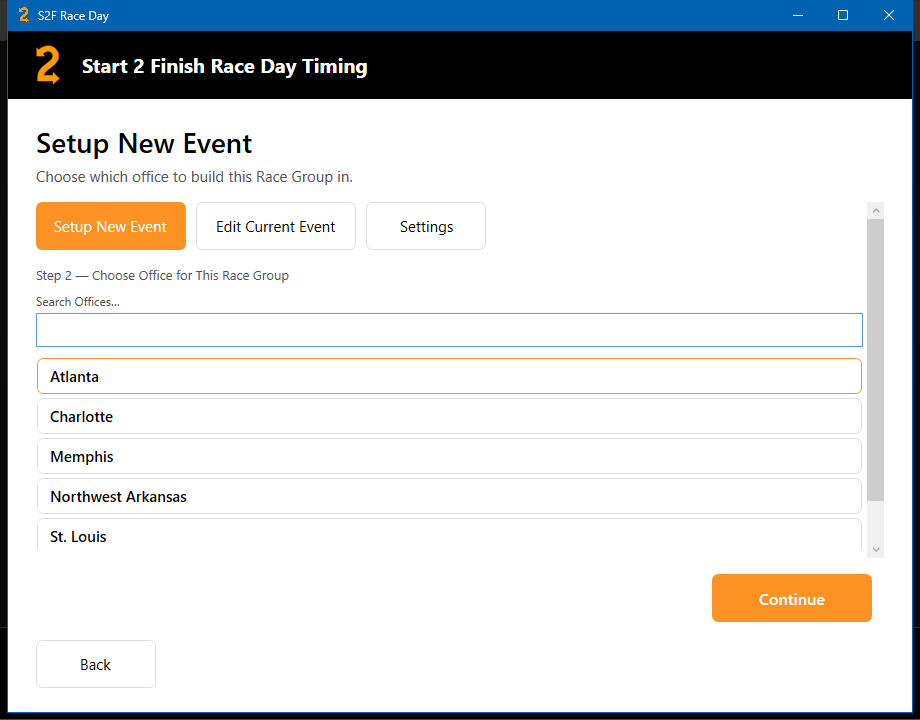
- Choose Office Select the office that owns the race, then Continue.
-
Race Group name (Race Group only)
Enter Race Group Name and Year → Continue.
On disk this becomes
Year - Name. - Copy From Pick Templates Folder or Past Races (This Office), then choose the Template or past race → Continue.
- Race details Fill in Race Name, Race Date, and %resultsid% (Race Roster). Tap Create Event.
-
After create
- Checkout This Race to prep RunScore / T&S on this laptop
- In a Race Group: Add Another Race to This Group for the next leaf
After a setup checkout, use the Active screen like race day, then Finish when prep is done. You may return to Admin ready for the next setup.
Edit Current Event
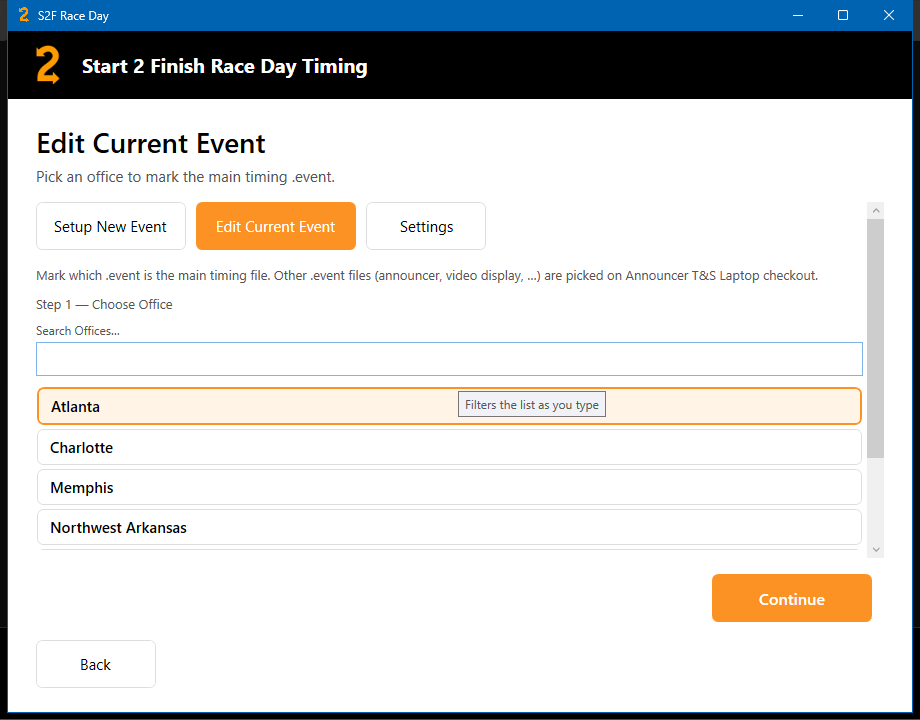
- Open Admin → Edit Current Event.
- Choose office and event (Past Races browse works the same as race day).
- Mark the Main Timing .event → Save Assignment.
- If there is no
.eventyet: Launch Timing & Scoring, Save As into the shown Active path, then Refresh Event Files. - Under a Race Group leaf, use Add Race to This Race Group. Choose Another Event starts over.
Settings
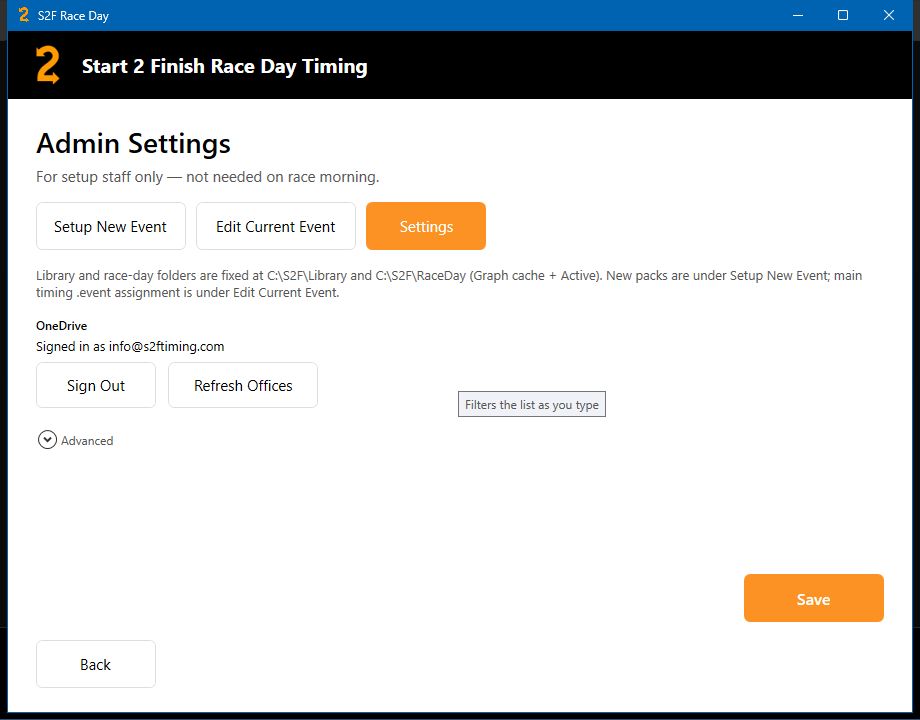
Admin → Settings:
- Sign In to OneDrive / Sign Out
- Refresh Offices — re-probes known office folders (does not download the whole library)
- Advanced — Graph subfolder (usually blank = My files) and Edit RunScore SOP…
- Tap Save after changes
Paths are fixed on every laptop:
- Library:
C:\S2F\Library - Race day:
C:\S2F\RaceDay
Past Races
On Choose Your Office, open Past Races and drill one level at a time (office bucket → year → race). When staff move a finished race into Past Races on OneDrive, the next Refresh Events on the old live office drops the local leftover.
Hand Off to Timers
Once laptops are installed and races exist, point timers and announcers to Race Day Timing — office → event → Open RunScore / Open Timing & Scoring → keep the app open → Finish.