
Step-by-step for on-site timers. Your office admin installs the app — you check out the race, run vendors, use Manual Backup / phone Backup Timing when needed, then Finish.
Main Timing Laptop
- Open the App Launch S2F Race Day. Leave Main Timing Laptop selected at the top. If the banner asks, tap Sign In to OneDrive and complete sign-in.
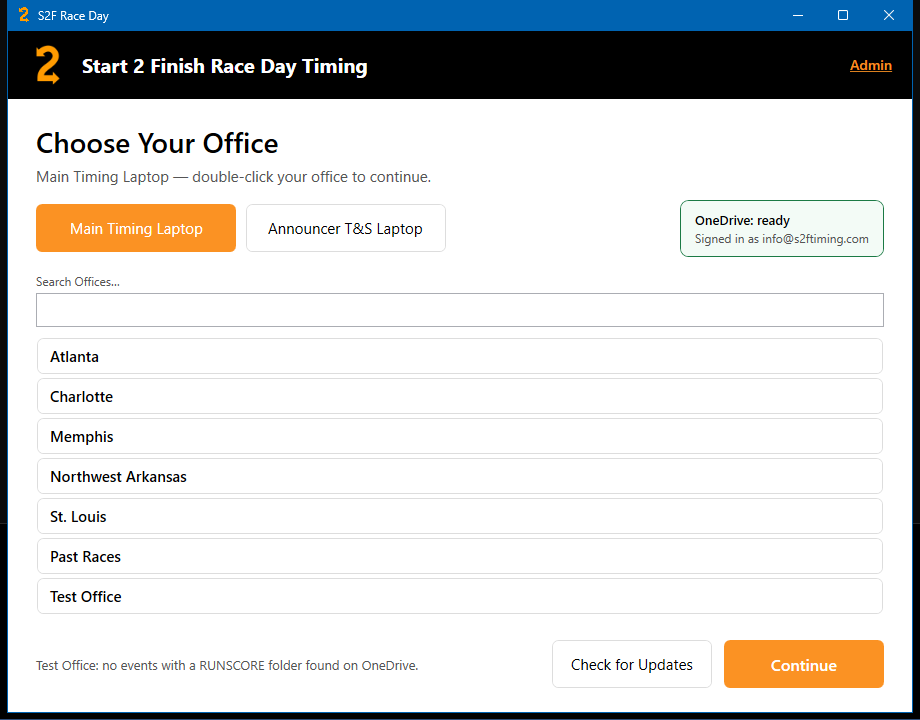
- Choose Your Office Double-click your office (or select it and tap Continue).
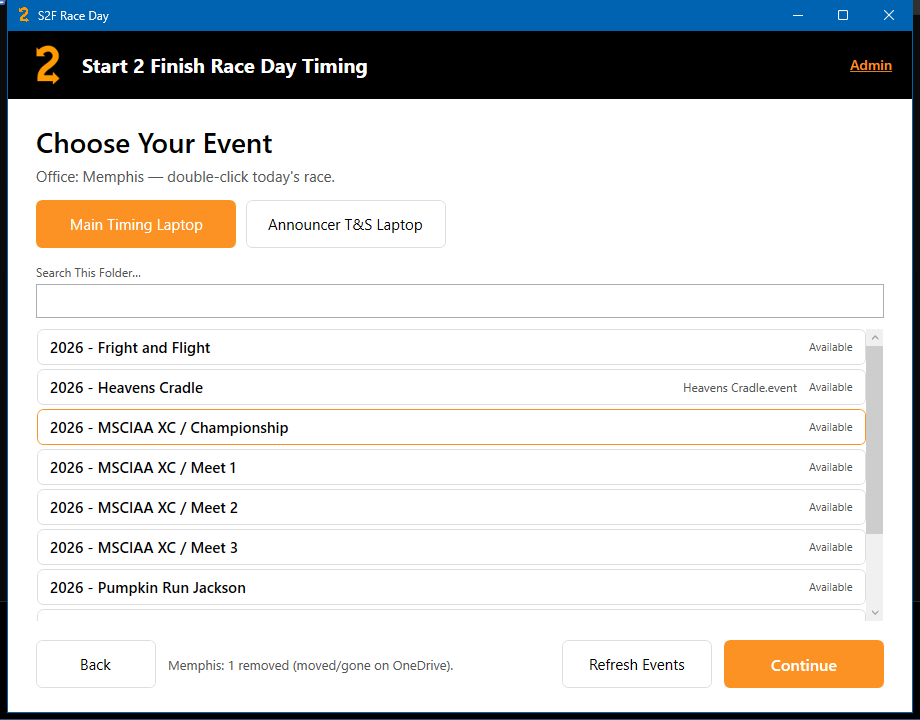
- Choose Your Event Double-click today’s race. Wait for the download to finish. If the list looks wrong, tap Refresh Events.
- Open Vendors Tap Open RunScore and Open Timing & Scoring from the top bar. Do timing work in those apps as usual.
- Race Start Clocks (Optional) On the Active screen, use the clocks for gun times. Label a category if you want, then tap Capture Gun Start at the gun (or type the start time). Add more clocks with the + tile when you need another category.
- Keep This App Open Leave S2F Race Day running the whole race. It mirrors RunScore’s alternate-save backup to OneDrive about every minute so another laptop can take over if needed.
- Finish Close RunScore and Timing & Scoring first. Tap the green Finish button. Wait until the overlay says the race is saved to the cloud before you shut down or let another laptop check out the same race.
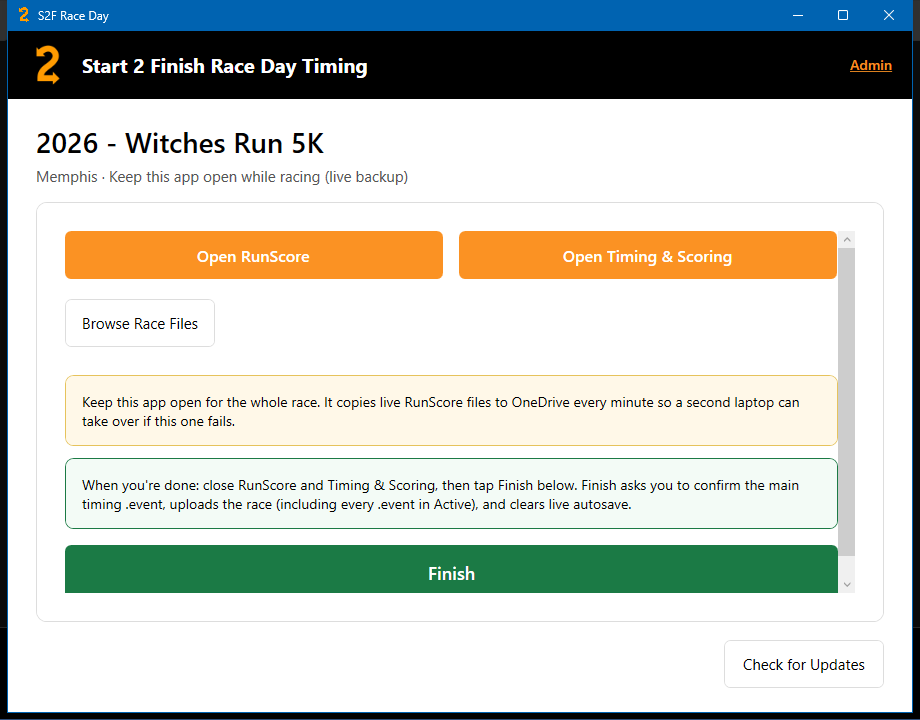
Keep this app open while racing. Closing it stops the mid-race OneDrive backup.
Manual Backup (Main Timing Laptop)
Use this when you need bib entry into RunScore Results locations from a second laptop and/or phones (S2F Staffing). Main Timing owns which locations are open and Plays taps into RunScore Open.
- Open the Race in RunScore First Locations come from RunScore Results (Master Menu). Open the race in RunScore before you configure Manual Backup.
- Enable Locations On the Active screen, tap Enable Manual Backup… (or Settings once it is already on). Check only the Results locations you want for backup timing. Tap Save. Leave none checked to turn Manual Backup off.
- Confirm the Split View After Save, Manual Backup columns appear on the left (one column per location). Race start clocks stay on the right. Drag the vertical divider if you need more room.
- Enter Bibs on This Laptop (Optional) Tap Entry for the floating bib window. Choose the location, type the bib, tap Submit (or Enter). Submitted bibs show under Last 5.
- Play Into RunScore Make sure RunScore Open is connected (status on the Entry window / Manual Backup rail). Tap Play on a device file, or Play All for that location. Use Pause / Pause All to stop. Tap New File when you want a fresh Current file for that location (Current moves to Prior).
- Leave SoftPull Running With Manual Backup enabled, Main Timing pulls phone / backup-laptop taps from OneDrive about every 5 seconds while you are Active — keep the app open so those taps appear and can be Played.
Phones and a Manual Backup Laptop only appear after Main Timing has enabled locations and published the catalog. If Staffing shows “No Mobile Backup sessions,” check that Main Timing has Manual Backup on for this race.
Manual Backup Laptop
Second Windows laptop dedicated to bib entry. It does not replace Main Timing’s Finish or RunScore Play.
- Pick the Role On the office screen, select Manual Backup Laptop (not Main Timing). Sign in to OneDrive if asked.
- Choose Office & Event Double-click your office, then double-click today’s race. This laptop only works for races that already have Manual Backup locations enabled on Main Timing.
- Open Entry Window Tap Open Entry Window. Choose the location, enter bibs, Submit.
- Main Timing Plays Bibs sync to OneDrive. The Main Timing laptop SoftPulls them and Plays into RunScore Open. Do not expect Play controls on the backup laptop.
- Done When finished entering, tap Done on the Manual Backup Active screen. Main Timing still owns Finish for the race pack.
Phone Backup Timing (S2F Staffing App)
Course / chute staff can enter bibs from a phone in the S2F Staffing web app. Same Manual Backup locations as the Timing app — Main Timing still Plays into RunScore.
- Sign In to Staffing Open the S2F Staffing app on your phone and sign in as usual.
- Open Backup Timing Tap the Backup Timing icon in the top header (shown when you have access — typically timer assignment / qualified roles, or lead/admin).
- Pick the Race Choose today’s event from the list. Use Refresh if it is missing. Only races with Manual Backup enabled on Main Timing appear. Filter by office if more than one shows.
- Pick the Location Tap the timing location you are covering (same name as RunScore Results / Manual Backup).
- Enter Bibs Use the keypad (or keyboard). Tap Enter after each bib. Recent taps and a running clock stay on screen. Use Change Location or Change Event when you move.
- Stay Connected When You Can Taps queue on the phone if signal drops, then sync when you are back online. Main Timing must stay open with Manual Backup on so taps SoftPull and can be Played into RunScore.
You can switch between Staffing chat / schedule and Backup Timing via the header icon without losing your place while you are actively entering.
Announcer T&S Laptop
-
Pick the Role
Select Announcer T&S Laptop. You only see races that have a secondary
Timing & Scoring
.event. -
Open Timing & Scoring
Check out the race, then tap Open Timing & Scoring. Keep the app open —
it pulls the race
DB'sfolder from OneDrive about every minute so new participants can load. -
Done
Close Timing & Scoring, then tap Done. That uploads this laptop’s
.eventto OneDrive and clears the announcer files from this laptop. It does not Finish the Main Timing checkout.
If Something Goes Wrong
- Already in Use — another laptop has the race. Wait, or use Force Take Over… only if ops confirms (Admin PIN).
- Take Over Event? — lock looks stale; Take Over reclaims and merges the latest mid-race backup.
- Saved on this laptop — cloud still needed — stay connected and tap Finish again before anyone else checks out.
- No Manual Backup / no phone sessions — Main Timing must enable locations first; RunScore must have Results defined; phones need Backup Timing access in Staffing.
- Taps not appearing in RunScore — confirm RunScore Open is connected, Manual Backup is Play-ing, and Main Timing stays open (SoftPull).
Do not shut down or let another laptop check out the same race until Finish completes to the cloud.
Need the app installed? Ask your office admin — install steps, Admin PIN, and creating races are on Admin Setup.